How can we help you?
Everything you need to get the most out of SelfHealth Living — from connecting Apple Health and wearables to understanding your bloodwork, tracking cycles, and managing your subscription.
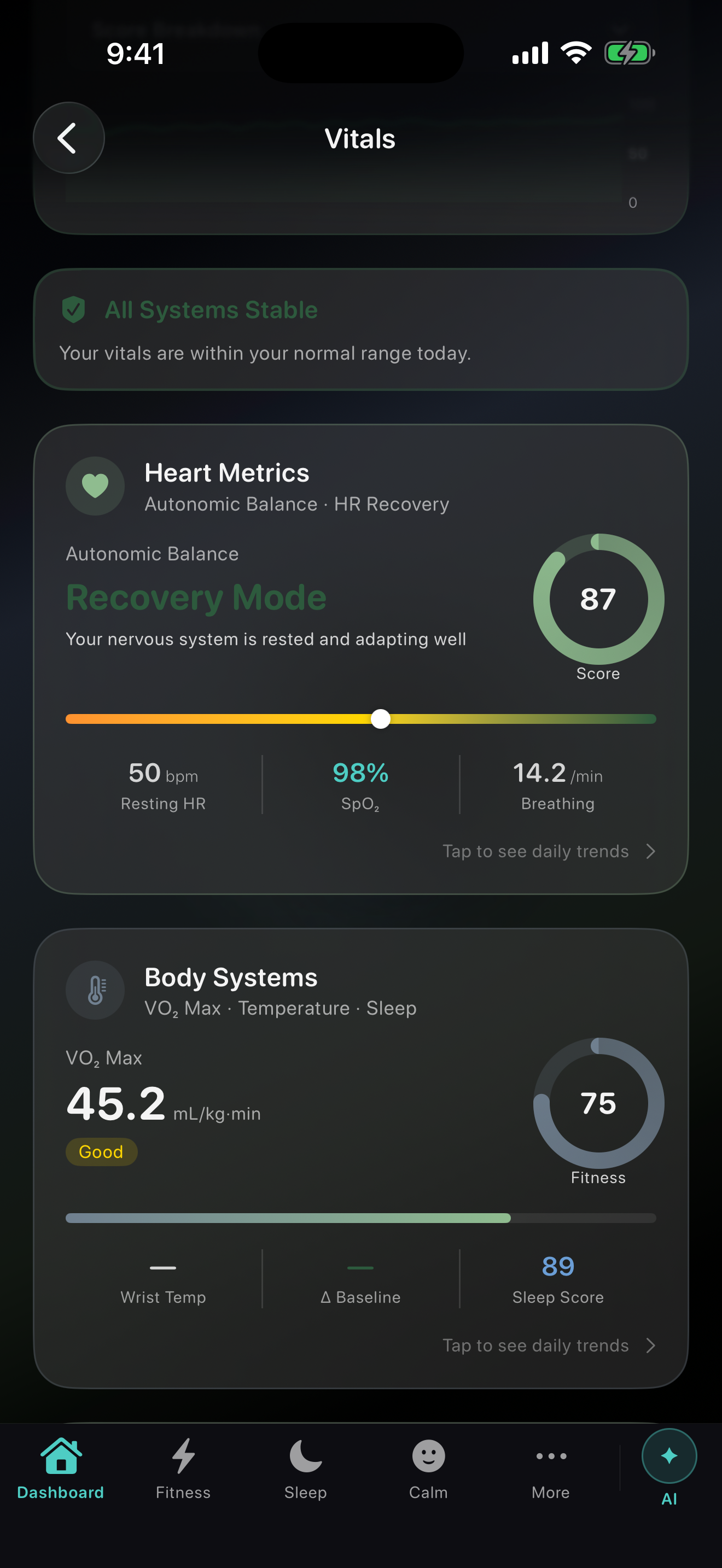
SelfHealth reads your data directly from Apple Health. On first launch you'll see a permissions prompt — tap Allow All to give the app access to everything it needs.
To review or fix permissions later:
- Open the iPhone Settings app
- Tap Privacy & Security → Health
- Tap SelfHealth Living
- Turn on all categories — especially Heart, Activity, Sleep, Nutrition, and Body Measurements
Any device or app that syncs to Apple Health automatically appears in SelfHealth:
- Apple Watch — heart rate, HRV, VO₂ max, sleep, workouts, ECG
- Oura Ring — sleep stages, readiness, body temperature
- Whoop — strain, recovery, sleep
- Garmin, Fitbit, Polar — workouts and activity via their companion apps
- MyFitnessPal, Cronometer, Lose It — nutrition and calories
- Withings, Renpho — weight and body composition
Enable Apple Health sync inside each device's companion app and the data flows into SelfHealth automatically.
This is almost always a permissions issue. Work through these steps:
- Check HealthKit permissions — make sure all categories are turned on (see above)
- Force-close SelfHealth (swipe up from the app switcher) and reopen it
- Open the Health app and confirm your data is present in the Browse tab
- If using Oura or Whoop, open their app and force a sync first
These metrics require an Apple Watch or compatible wearable.
- HRV — recorded automatically during sleep by Apple Watch (watchOS 7+). Won't appear if you didn't wear your watch overnight.
- VO₂ max — estimated during outdoor walks, runs, or hikes (10+ minutes with GPS).
- Resting heart rate — takes 3–5 days after first setup to appear.
If the data is in the Apple Health app but not in SelfHealth, double-check HealthKit permissions for the Heart category.
- Force-close the app and reopen it
- Restart your iPhone
- Check the App Store for a SelfHealth update
- If the problem persists, go to Settings → Reset App Data inside SelfHealth — this won't affect your Apple Health data
- Check your internet connection
- Tap Forgot Password to reset via email
- If you signed up with Apple, tap Sign in with Apple — use the same Apple ID you registered with
- Still stuck? Email support@selfhealthliving.com with your account email
- Go to iPhone Settings → Notifications → SelfHealth Living and confirm notifications are enabled
- Check that Focus / Do Not Disturb isn't silencing the app
- Inside SelfHealth, go to Settings and confirm reminders are turned on
SelfHealth uses AI to parse lab PDFs but formats vary by lab. Here's what helps:
- Use the original PDF from your lab's patient portal — scanned photos are less accurate
- Make sure the PDF is not password-protected
- If a marker is missing, tap + Add Marker on the Bloodwork screen to enter it manually
The fastest method is importing a PDF directly from your lab's patient portal:
- Log into Quest MyQuest, LabCorp Patient, or your lab's portal on your phone
- Download your results as a PDF
- In SelfHealth, tap Bloodwork → Import → PDF
- Select the file from Files or your Downloads folder
- Review the AI-parsed markers and confirm
- Quest Diagnostics
- LabCorp
- BioReference
- Sonora Quest
- Cleveland HeartLab
- Any lab that exports a standard PDF with marker name, value, unit, and reference range
Try importing even if your lab isn't listed. If it consistently fails, email us the lab name and we'll add support.
Yes — on the Bloodwork screen tap + → Add Manually. Enter the marker name, value, unit, and test date. Useful for individual markers missed by the PDF parser or printed reports.
Tap any marker to open its detail view, then tap Ask AI. You can also open the Health Assistant (the ✦ button on the dashboard) and ask "What do my latest cholesterol results mean?" for a full analysis.
All your SelfHealth data — bloodwork, notes, supplements, health scores — stays only on your iPhone. Nothing is sent to our servers.
Pros: maximum privacy, works offline, no account required.
Cons: if you lose your phone without a backup, SelfHealth data is gone; no cross-device sync.
Your SelfHealth data syncs securely to our servers (encrypted in transit and at rest). Requires a SelfHealth account.
Pros: safe even if your phone is lost; restore everything by signing in on a new device.
Cons: requires internet to sync; data lives on our servers — see our Privacy Policy.
- Privacy first + regular iPhone backups → choose On-Device
- Peace of mind + plan to switch phones → choose Cloud Backup
Change it any time in SelfHealth → Settings → Data Storage. Switching to Cloud uploads your existing on-device data; switching to On-Device stops syncing but doesn't delete server data.
Yes. All data in transit uses TLS encryption. Data on our servers is encrypted at rest. We never sell your data or share it for advertising. Full details in our Privacy Policy.
SelfHealth Living is currently available on iPhone only. An Android version is actively in development and we're working hard to bring it to you.
Sign up for our newsletter to be the first to know when Android launches and stay up to date on all new features.
Still need help?
Can't find what you're looking for? Email our support team directly. We typically reply within one business day.
Email SupportShape what comes next
Have an idea for a feature? Tell us what you'd love to see. Every suggestion goes directly to the product team.
Got it — your idea goes straight to the team. Thank you!